
This page covers a panorama’s initial position and a hotspot’s view direction. Whether the initial position is used when visitors move around depends on the tour’s View Direction setting: see Which way visitors face.
Set a panorama’s initial position
- In the editor, go to the panorama and open the Panorama tab on the right.
- Open View & Orientation and, under Initial Position, choose Select Position (1).
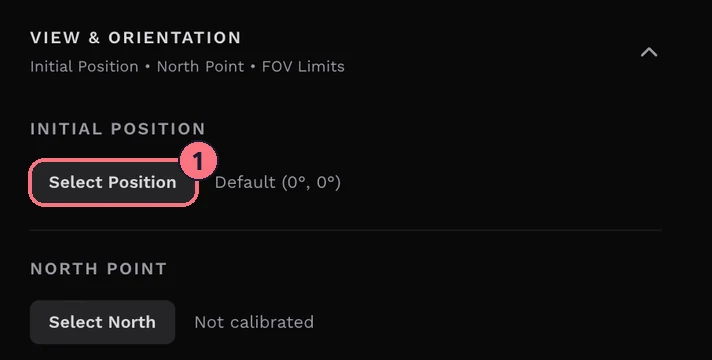
- Drag the panorama until it shows the view you want visitors to see first. A grid helps you line it up.
- Choose Save Position (2). “Initial position set.” confirms it.
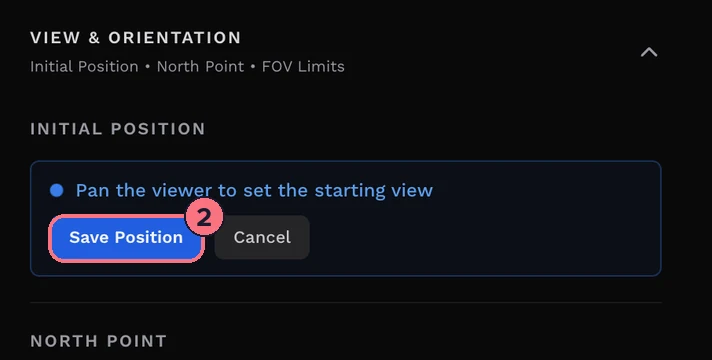
The section then shows Position set with the angles. Choose View to jump to it, Change to pick a new one, or Reset to go back to the default.
Set the view through a hotspot
You can reach the same room from two doors. If a visitor walks in from the hall, they should face into the room, not back at the hall. A hotspot that links to another panorama can have its own View Direction for the panorama it leads to:
- Select the hotspot and open the Hotspot tab.
- Under View Direction, choose Change, turn the view to face the way visitors should arrive, then choose Save.
A hotspot’s view direction always wins over the panorama’s initial position when the visitor arrives through that hotspot.
When the initial position is used
With the tour’s View Direction on Reset per panorama, the default, a panorama opens at its initial position however visitors arrive, unless the hotspot they came through has its own view direction. With Keep when moving, visitors keep facing the same compass direction instead. See Which way visitors face.
Tips
- Start the first panorama on its best view. It’s the first thing anyone sees when the tour opens.
- To limit how far visitors can zoom or look around, see Viewer controls, in the same section.
Common questions
Why does my panorama open facing a wall?
The panorama has no saved initial position, so it opens wherever the camera happened to point. Set one under View & Orientation. If the tour’s View Direction is Keep when moving, set the panorama’s north point instead.
Why does a room open facing a different way from one hotspot?
That hotspot has its own View Direction, which always wins over the panorama’s initial position. Change it on the Hotspot tab, or choose Reset to remove it.
Is the initial position the same in every tour that uses the panorama?
No. A panorama’s initial position is set separately in each tour, so the same photo can open on a different view in each one. See Use the same panorama in several tours.