
Custom domains are included in some plans. If yours doesn’t include them, the Domains page offers an upgrade; if you’ve used all your plan’s domains, it offers to buy more.
Before you start
- You need a domain you own, bought from a domain registrar such as GoDaddy or Namecheap, and the login for it.
- Pick a subdomain for the tours, the part before your domain: tours.yourcompany.com, or www to use the domain itself.
1. Enter your domain
- In your dashboard, open Domains in the left menu and choose New Domain (or Add Domain if you have one already).
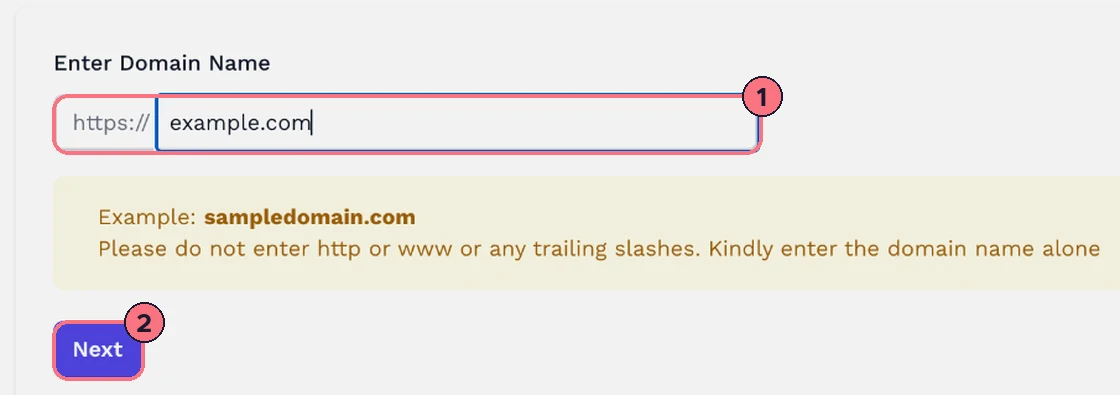
- Type your domain name (1) on its own, such as yourcompany.com: no https://, no www and no slash at the end.
- Choose Next (2).
2. Choose the subdomain
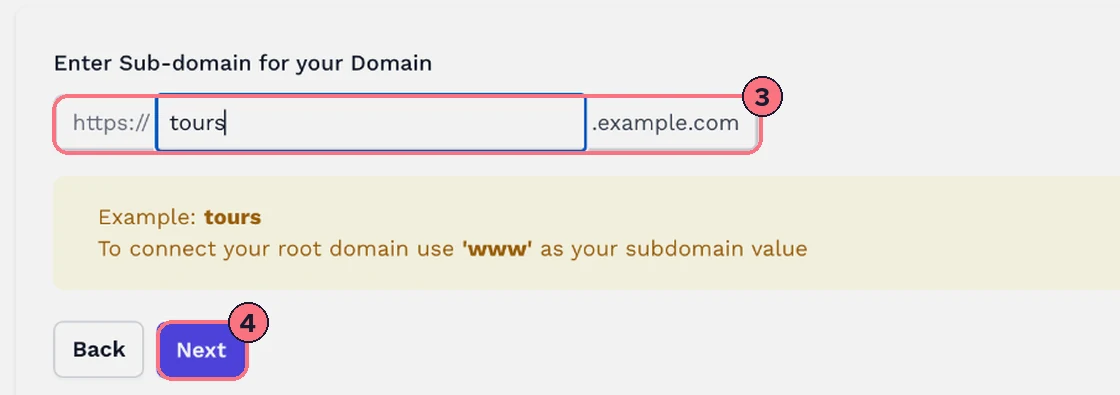
- Type the subdomain (3), such as tours. The box shows the full address it makes. To use your domain itself, type www.
- Choose Next (4). This adds the domain to your account. If the address isn’t valid or is already in use, a message says so.
3. Add the DNS record at your registrar
The DNS Setup step shows two values, each with a copy button. In another browser tab:
- Log in to your domain registrar and open the DNS records for your domain.
- Add a new CNAME record.
- In the Host (or Name) field, paste the first value: your subdomain, such as tours.
- In the Points to (or Value, or Target) field, paste the second value from the DNS Setup step.
- Leave the TTL as it is and save.
Then go back to TeliportMe and choose Next. Registrars’ own guides: GoDaddy, Namecheap, Cloudflare, Squarespace, Wix, SiteGround.
4. Wait, then activate
DNS changes can take 24 to 48 hours to reach everywhere, depending on your registrar. Choose Finish; your domain appears in the list on the Domains page.
Once the record has had time to spread, choose Activate in the domain’s Status column. When it shows Active, the domain is ready. If it can’t be activated yet, a message says why; check the record and try again later.
Share tours on your domain
Open a tour’s Share window from the Tours page. When you have a custom domain, a Custom Domain menu appears at the top: choose your domain, and the Direct Link and Embed Code below change to use it. Copy them as usual. See Share a tour.
With a custom domain you can also set your own Favicon, the small icon in the browser tab, on the editor’s Tour tab. See Tour settings.
Common questions
How long does a custom domain take to start working?
The CNAME record can take 24 to 48 hours to reach everywhere, depending on your registrar. Once the domain shows Active, the secure padlock (HTTPS) can take up to 24 hours more.
Why won’t my custom domain activate?
If the domain can’t be activated yet, a message says why. Check that the subdomain has just one CNAME record, so remove any A, AAAA or other CNAME record on it. Then look it up with a public DNS lookup such as Google’s Dig tool: enter the full address (tours.yourcompany.com) and look for the value from the DNS Setup step.
Can I use my root domain instead of a subdomain?
Yes. Type www as the subdomain in step 2 to connect the domain itself, such as www.yourcompany.com.
How do I remove a custom domain?
Choose Delete next to the domain on the Domains page. The page asks you to confirm.